Getting started with DM Studio: your first campaign and everyday tips
Start a small Instagram DM campaign, then find practical guides to recipient lists, CSV personalization, saved campaigns, brand accounts, history, and sending problems.
DM Studio brings your recipient list, message draft, sending queue, and history into one Chrome extension. Use this page to prepare a first campaign or find the guide for the task in front of you.
Find the guide for your next task
| What you need to do | Read this guide |
|---|---|
| Find candidates before you have a list | Build and review an outreach list |
| Import a spreadsheet and personalize each message | Personalized DMs from Excel or CSV |
| Save work, pause sending, or return to a campaign | Save, pause, and resume campaigns |
| Check the sender and switch between brand accounts | Manage multiple Instagram accounts |
| Check results, export records, or prepare a follow-up | History, exports, and follow-ups |
| Deal with a connection, recipient, or sending problem | Troubleshoot sending |
New to DM Studio? Follow the short sequence below. Already prepared a campaign? Start with the guide that matches your next action.
Start with a few reviewed recipients
1. Install and check the sender
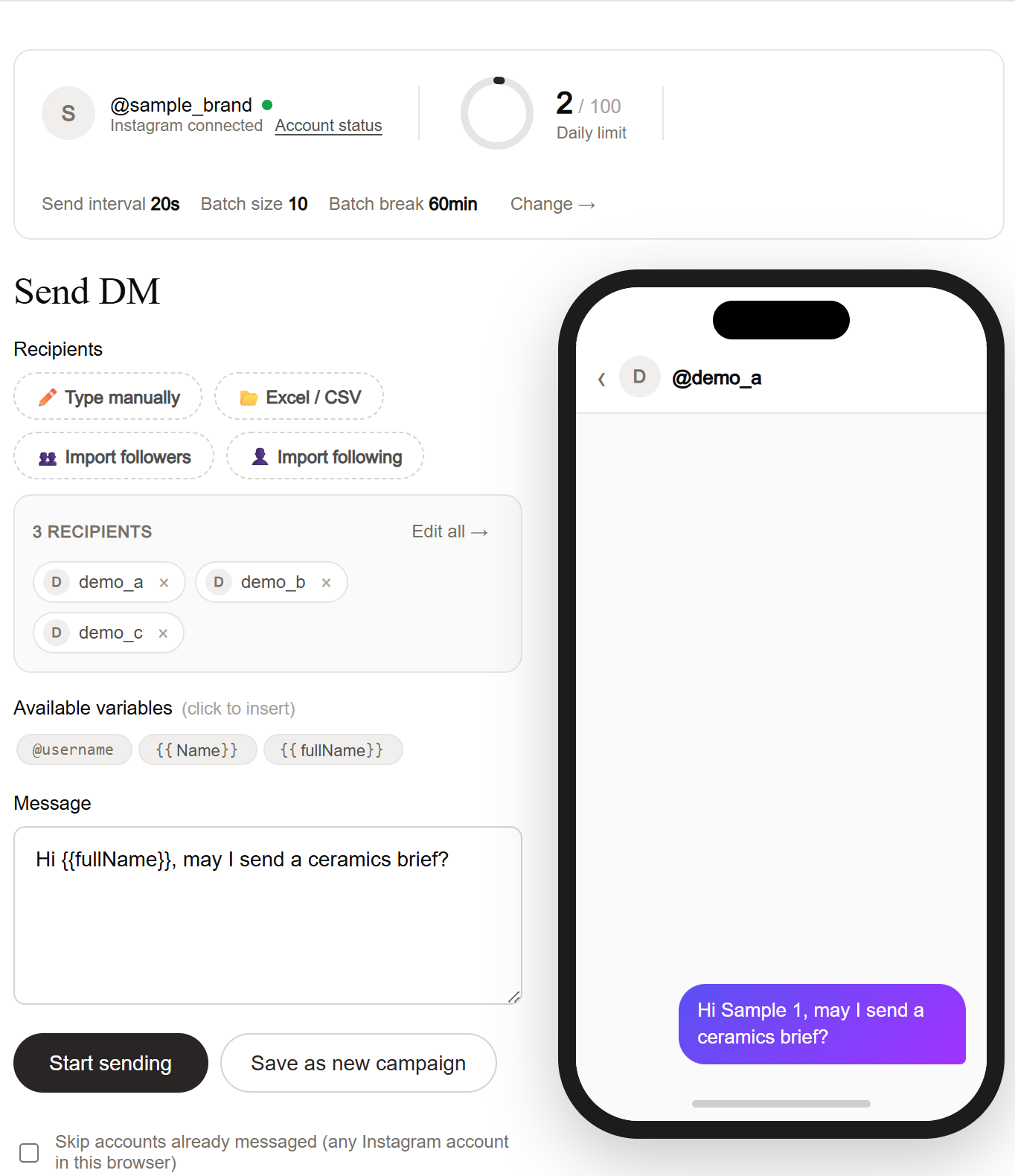
Use the installation link on the homepage, log into Instagram in the same Chrome browser, and open DM Studio. Check the avatar and @username at the top of the sending screen before preparing a brand message.
Google login in Subscription connects your DM Studio license and can start an eligible one-time, 24-hour PRO trial. It does not choose your Instagram sender. Free works without Google login.
2. Prepare your list and message
Start with two or three people whose work and contact preferences you have reviewed. If you need candidates, follow the list-building guide. A place on another account's follower or following list alone does not establish a good fit.
Download the starter CSV. Its demo_replace_me_01 and demo_replace_me_02 rows are fictional labels, not verified recipients. Replace every demo username and detail before importing. Keep username as the header; first_name, topic, and proposal become message variables.
Hi {{first_name}}, I enjoyed {{topic}}. Would you be interested in {{proposal}}?
Use Excel / CSV in the sending screen to import your edited file. Check every recipient and custom field, then check the phone preview. It previews the first row with a valid username; it does not review the whole list. Fill every field used in the template and remove unresolved variables. The CSV walkthrough covers import and preview checks.

3. Choose a pace and send
Check the current sender again. In Settings, choose a conservative daily cap, interval, and batch break. The product minimum is a 20-second interval; batches contain ten sends with at least a 30-minute break. You can slow the pace further.
Start sending begins delivery immediately. Pause lets you stop progression before inspecting work or changing accounts. Interval waits and batch breaks still count as running; pause before switching. Read campaign controls for saving and returning later, or account switching for the sender checks before resuming.

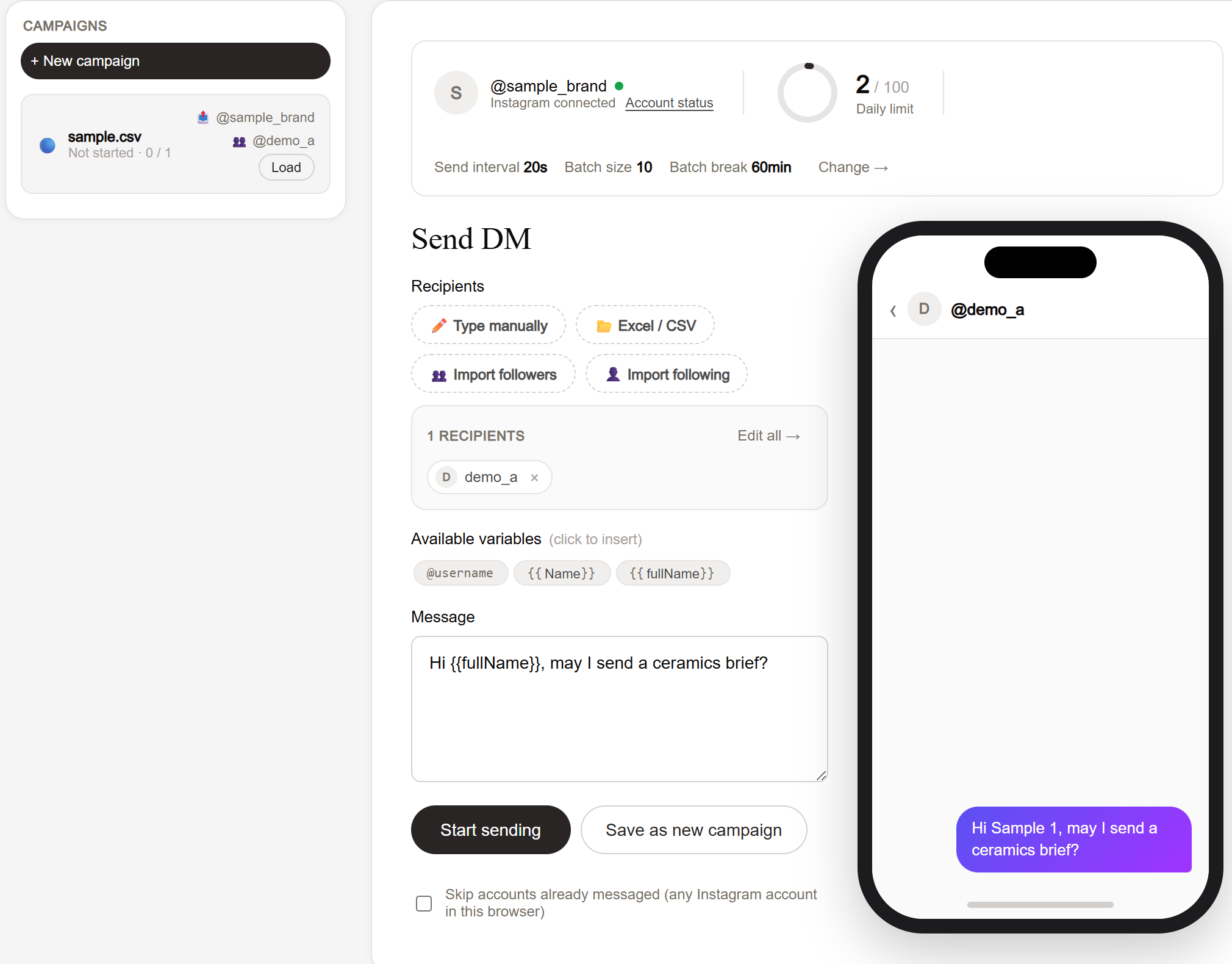
Saved CSV caution: Custom-column values may be lost when a saved CSV campaign is loaded. Keep the original file and re-import and review those values before later sends. Compare the re-imported recipients with successful sends in History and remove anyone you do not intend to contact again; do not assume a fresh import retains the old campaign's progress. Previously lost values are not automatically restored.
4. Review the result before the next campaign
Open History and check the outcomes from your small first campaign. A successful send is not a read receipt or a reply; check responses in Instagram. See history and follow-ups to export records and decide who should receive a later message.
If the queue stops or an account or recipient check fails, use the troubleshooting guide before retrying.
Keep these limits and data rules in mind
Free includes 10 sends/day across all Instagram accounts on the same license. Paid PRO and the eligible PRO trial lift that license allowance while keeping the product cap of 100 successful sends/day per Instagram account, sending intervals, and batch breaks. Switching accounts does not reset the Free allowance. Multi-account operation is available on Free and PRO; accounts are used sequentially.
Instagram can impose its own limits below the product cap. Pacing does not guarantee delivery or prevent account restrictions. See current plans for subscription details and the paced campaign walkthrough for longer-list planning.
Messages, recipient lists, campaigns, and history are stored locally in this Chrome browser. DMs are sent directly from the extension to Instagram. The license service receives a license UUID and usage counters; Google login also sends your email for the license account. Anonymous usage events go to analytics without message text or recipient lists. Read the privacy policy, and keep original CSVs and important history exports.