How to save, pause, and continue an Instagram DM campaign in DM Studio
Choose between saving a campaign and starting delivery, pause an active queue, and continue with remaining recipients without repeating successful sends.
In DM Studio, Save as new campaign keeps a prepared recipient bundle without sending it. Start sending begins delivery immediately. Once a queue is running, Pause holds it for review and Resume continues it. A saved or stopped campaign uses Continue sending to work through its remaining recipients.
These actions solve different problems. Saving keeps work for later, pausing gives you a checkpoint during an active queue, and continuing uses the campaign's sending results to avoid repeating recipients already sent a message. Saved CSV campaigns need extra care: custom column values can be lost when loaded, so keep the original file and review personalization again before later delivery.
Can you resume an Instagram DM campaign later?
Yes. Load the saved or stopped campaign, review the sender, message, and remaining recipients, and then choose Continue sending. Recipients already sent a message in that campaign stay sent, including when another Instagram account handles the remainder. Attempts that did not deliver may return to the remaining group after reconciliation.
Continuing is not scheduled sending. You return and start it yourself. If the campaign came from Excel or CSV, compare the loaded table with the original file first because custom column values can be missing. Reimport and review the original when the personalized values are incomplete.
Choose the action for your situation
| Your situation | Action | Expected result |
|---|---|---|
| Prepared list, not ready to deliver | Save as new campaign | Saves without sending; you return to start it yourself |
| Reviewed list, ready to deliver now | Start sending | Begins actual delivery |
| Active queue needs a checkpoint | Pause, then Resume | Holds the current run, then continues it |
| Returning to saved or stopped work | Load, then Continue sending after review | Works through eligible remaining recipients |
| No further contact planned | End campaign | Ends work on the remaining recipients |
Before saving: finish the review
Open Send DM, check the sender handle, and prepare your recipient table and message. Review usernames and every field your template uses. The phone preview displays the first valid recipient; it does not check every row for accurate observations or missing values.
For example, a collaboration list may contain username, first_name, and topic. If the template says Hi {{first_name}}, I enjoyed {{topic}}, inspect both custom fields in every row. A blank cell can become blank text, and a field absent from the table can leave its token in the message.
If you want to omit people successfully contacted before in this browser, enable Exclude previously sent accounts before saving or starting. It is off by default and checks successful history across this browser's Instagram accounts. The excluded people are not added to the campaign. This is separate from a campaign remembering its own successful sends.
Need a file format first? Follow the CSV personalization guide.
Save now and send later
- With your reviewed table and draft ready, choose Save as new campaign.
- Check that the campaign appears in the saved campaign list. Saving alone does not deliver DMs.
- Keep the source CSV or Excel file outside the extension. Local campaign storage is not a cloud backup.
- When returning, choose Load for the saved campaign, check its sender and remaining recipients, and review the loaded message before choosing Continue sending.

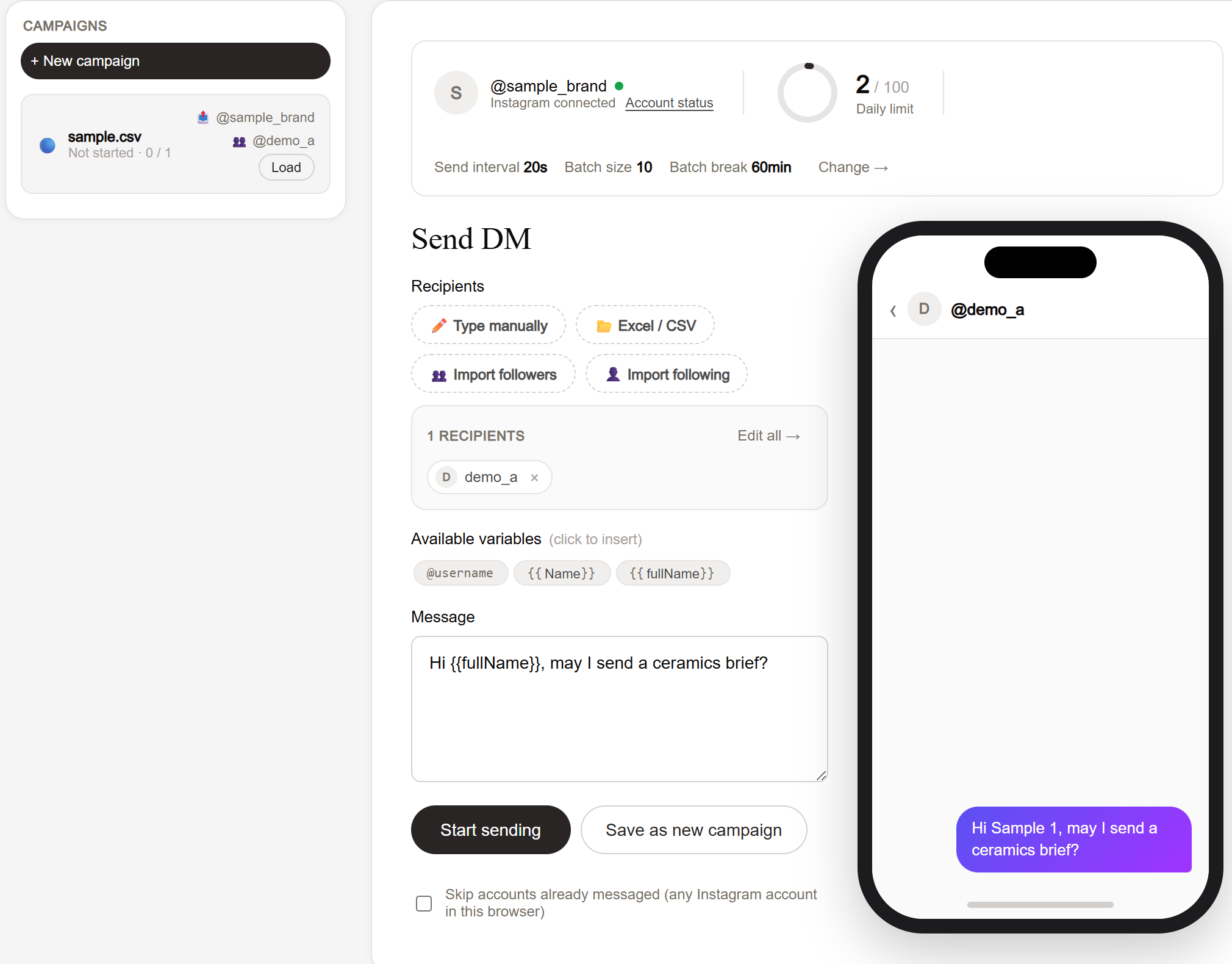
Saving is useful when you have reviewed the list but should not contact people yet. It does not book a future sending time. You return and start the campaign yourself.
CSV checkpoint: Do not assume custom fields are restored from a saved campaign. If the loaded table has lost values, use your original file to prepare and inspect the personalization again. Previously lost values cannot be recovered automatically. When reimporting as a fresh list, review the exclusion option and history so you do not accidentally repeat successful contacts. Keep it off only when repeat contact is intentional.
Pause an active queue
Choose Start sending only when the sender, message, and recipients are ready for actual delivery. The queue works in batches of ten, with a randomized sending interval and a break between batches.
Use Pause when you need to check progress or switch the sending account. Interval waits and batch breaks are still part of a running queue. Pause first even if the screen currently shows a countdown rather than a message being sent.
While paused, inspect the sender and results. Use Resume when you intend to continue the active queue. Pausing is a control for the current run; use the saved campaign and its remaining-recipient count when returning to work later. Do not rely on a paused browser session as a scheduled campaign.

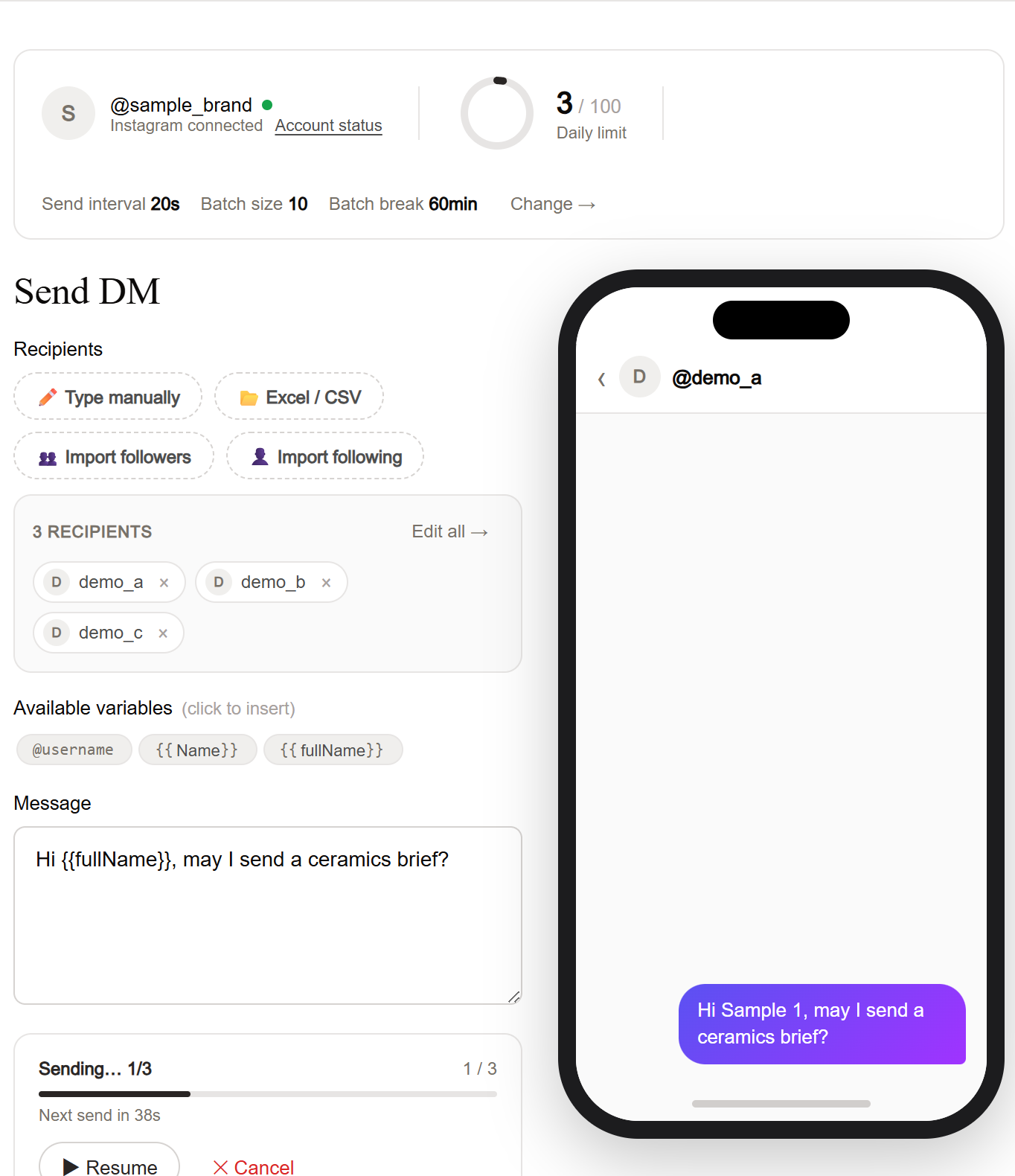
Example: You have sent six messages and need to check a brand detail. Pause, review the six results in history, and confirm the intended sender before continuing. A successful message has already gone to Instagram; pausing does not undo it.
Understand what “remaining” means
The campaign list distinguishes sent, failed, and remaining recipients. A stopped queue can still have remaining people even when today's work has finished. A daily quota or Instagram restriction is not the same as completing the campaign. After cancellation, compare the remaining list with actual successful history records and Instagram; a completion label alone is not proof every recipient received a message.
Loading a campaign uses its results and local history to reconcile recipients. People already sent a message stay sent. Some attempts that did not deliver, such as connection or session failures, can return to the remaining group. A recipient-side problem or repeated failure can instead leave someone in the failed group.
For example, suppose a ten-person campaign stops after four successful sends because Instagram reports an account restriction. Check the remaining count. The recipients not sent a message remain available for later work; do not recreate the entire ten-person list and send it again. Resolve the reason for stopping, then continue the saved campaign after reviewing its state.
See sending troubleshooting when you need to identify the stopping reason. Repeatedly pressing Start does not remove an Instagram restriction, and upgrading does not remove it either.
Continue with another account carefully
Campaigns are not fixed to one Instagram account. For an active queue, the sequence is Pause → switch in Instagram → confirm the sender and draft → Resume. Remaining recipients will be contacted by the new account, using its interval and product daily cap. Recipients already sent a message in the campaign are skipped across accounts.
Use this only when the remaining message still makes sense from the new sender. If a draft speaks for a ceramics brand, moving to a homeware brand without reviewing that context can produce a misleading message. Separate offers or audiences deserve separate campaigns. Learn the full procedure in managing multiple Instagram accounts.
Finish work without losing your records
Use Cancel to stop the current queue. Use End campaign when you no longer intend to contact the campaign's remaining recipients. An explicitly ended campaign cannot be resumed with Continue sending. Ending differs from deleting the campaign, which removes the saved campaign and cannot be undone.
Before clearing local data or deleting work, preserve your original files and export important sending history. Free allows ten sends per day across accounts on the same license. PRO removes that license quota but keeps the product cap of 100 successful sends per Instagram account per day, minimum 20-second intervals, and at least 30 minutes between ten-send batches. Those limits do not guarantee delivery.
Save a reviewed campaign when delivery should wait. When you return, load it and verify the remaining recipients and personalized message before continuing.
For the complete setup path, return to Getting started with DM Studio.