How to manage multiple Instagram accounts for outreach in DM Studio
Check each Instagram sender, switch accounts after pausing, and understand account-level sending caps, shared license quotas, and campaign recipients.
DM Studio lets you check known Instagram accounts and switch the sender while managing outreach in one Chrome browser. Multi-account operation is a basic feature, including on Free. For an active queue, use Pause → switch accounts → check the sender and message → Resume. Remaining recipients are then contacted from the new account.
The Instagram sender and your DM Studio license are separate. Each Instagram account has its own product daily cap and sending interval. Free's ten-send daily allowance is shared across all Instagram accounts using the same license. Switching accounts does not reset that allowance, and this workflow does not send from multiple accounts simultaneously.
Can one campaign continue from another Instagram account?
Yes. A DM Studio campaign is not tied to one Instagram account. Pause the active queue, switch accounts in Instagram, verify the new sender and message, and then resume. The remaining recipients use the new account's sending interval and daily cap. Anyone already sent a message in that campaign stays sent across accounts, so switching does not restart the audience.
Before you continue, confirm four things:
- The
@usernameshown in DM Studio is the sender you intend to use. - The offer and message still make sense from that account.
- The campaign's sent, failed, and remaining counts match the work you expect.
- The new account has enough product allowance for the next batch. Free's ten-send license allowance remains shared across accounts.
Check the sender before opening a brand list
In Send DM, read the avatar and @username at the top. That identifies the Instagram account that will send. Google login in Subscription connects your license and may start an eligible one-time, 24-hour PRO trial; it does not choose an Instagram sender.
Open Account status to see the accounts the extension has encountered, the current account, and recorded Instagram restriction cooldowns. On Free, each account's row shows its daily sending count, with a separate notice for the license's shared ten-send quota. On PRO, each row shows its daily count and account-level product cap. It is a view of accounts this extension knows, rather than a complete inventory of every account you own.

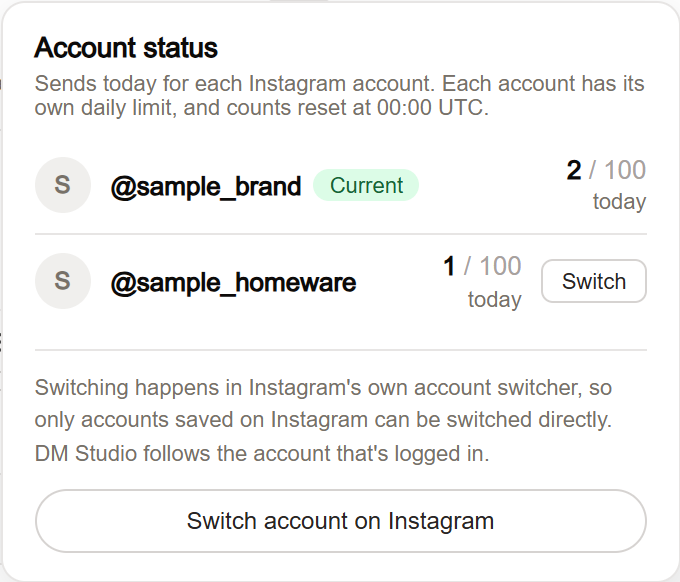
Example: You handle a ceramics shop and a homeware shop. Keep separate source files, such as ceramics-collaboration-october.csv and homeware-collaboration-october.csv. Before importing either, match the extension's handle to the file's brand. An external work note can record the intended sender, offer, and source file; campaign labels are generated automatically.
Switch before a campaign starts
- Open Account status when the queue is not running.
- Choose Switch account on Instagram to open Instagram's account switcher, or use Switch beside a known account.
- Select the desired account in Instagram. Immediate switching requires that account to be saved in Instagram. If it is missing, sign into it there yourself.
- Return to DM Studio and verify the displayed sender handle. Check the message's brand, proposal, and recipient list before starting.
The extension does not enter passwords for you. If it cannot open the switcher, use Instagram's own account-switching menu. A switch action is not enough evidence that the right account is active; the handle afterward is your checkpoint.
Tip: Do not reuse a draft merely because the two brands share some candidates. A line such as “our ceramic launch” needs review before sending from a homeware account. Keep the sender and offer paired in your source file or work notes.
Switch during a queue
The account-switching actions are disabled while a queue is running. An interval wait or a batch break is still a running queue, even when no message is being sent at that moment.
- Choose Pause and check that the queue is paused.
- Open Account status and switch to the intended account. Review the confirmation when switching while paused.
- Verify the new handle and whether the remaining message is appropriate for this sender.
- Choose Resume only when you intend the new account to send the remaining messages.
The new account's interval applies before its next send, so switching does not promise immediate delivery. Its own product daily cap applies too. If you change Instagram accounts without pausing, the queue stops when it detects the change and leaves unsent recipients in the campaign. Inspect history and the remaining list before continuing from the current account.
Use the campaign save, pause, and continue guide when returning to a stopped campaign rather than resuming an active queue.
Understand accounts, campaigns, and repeat contact
Campaigns are not fixed to one Instagram account. Their remaining recipients can be handled from another account after checking that the sender and message still fit. A recipient already sent a message in that campaign stays sent across accounts. Switching does not create a fresh copy of that campaign's audience.
For a separate new list, the Exclude previously sent accounts checkbox is optional and off by default. When enabled, it omits recipients with successful sending history across all Instagram accounts in this browser. For example, if the ceramics account already contacted a maker successfully, turning on exclusion for a fresh homeware list can omit that maker too. Check the excluded count before starting.
This history check depends on records retained in the browser. It is not a company-wide contact database shared with other browsers or colleagues. When organizing separate brand campaigns, retain source lists and external notes about who was contacted and why.
Saved CSV caution: Loading a saved CSV campaign can lose custom column values. Keep the original file and reimport and inspect personalization before later delivery when needed. Previously lost values are not automatically recovered. If you prepare a fresh list, check history and exclusion so that reimporting does not unintentionally repeat prior successful contacts.
Read the correct limit
| Scope | Limit or behavior |
|---|---|
| Free license | Ten successful sends per day across its Instagram accounts |
| Each Instagram account | Product cap of 100 successful sends per day, or your lower configured cap |
| Paid PRO and eligible PRO trial | License daily quota removed; account caps and pacing remain |
| Sending pace | Minimum 20-second interval, randomized up to less than twice the configured value; ten-send batches with at least 30 minutes between batches |
Daily counters reset at UTC midnight. The default batch break is 60 minutes. Switching accounts does not change the Free quota. Instagram may also restrict an account before the product cap is reached. A recorded cooldown is useful context, not a guaranteed time at which delivery becomes possible.
If a sender is restricted, review the reason and remaining recipients. Do not treat another account as a guaranteed way around the restriction. Read sending troubleshooting for the next action appropriate to the displayed state.
Keep local work and license access separate
Recipients, message drafts, campaigns, and history are stored locally in this Chrome browser. Google login can connect your license, but it does not turn local campaigns into cloud-synced team work. Keep source files and export important history before clearing local data.
DMs go directly from the extension to Instagram. The license service receives the license UUID and usage counters, plus your email if you sign in with Google. Anonymous usage events containing permitted categories, numbers, and booleans go to analytics. Message text and recipient lists are not sent to that analytics service or the license server. See the privacy policy.
Before opening your next brand list, check the displayed sender and pair that account with the right source file and offer.
Return to Getting started with DM Studio for installation and your first reviewed list.