DM Studio sending paused or stopped? Checks before you continue
Identify normal waits, Free quota, Instagram restrictions, connection and license problems, then review the sender and remaining recipients before continuing.
When DM Studio is not sending, first read the queue stage and any banner. An interval countdown or batch break is normal pacing; a paused queue, a quota notice, and an Instagram restriction need different next actions. Check the latest attempt in History and the campaign's remaining recipients before starting again.
Do not use a campaign's completion label alone to decide whether every DM was delivered, especially after cancellation. Compare successful history records with the corresponding Instagram conversations when the result is unclear. Repeatedly pressing Start does not fix the underlying restriction or connection problem.
Match the screen to the next action
| What you see | What it means | Next action |
|---|---|---|
| Sending interval countdown | The queue is pacing messages | Let the countdown run; check Settings if you need to understand the configured interval |
| Batch break | The ten-send batch has reached its break | Wait for the break; it is still a running queue |
| Paused queue | The run is held for review or connection recovery | Check the sender and reason; use Resume only when ready |
| Free quota reached | The license's shared daily allowance is exhausted | Review usage in Subscription; return after the daily reset or choose a plan that fits your needs |
| Account product cap reached | That sender has reached its configured daily cap | Check Account status and Settings; retain the campaign for later |
| Instagram restriction | Instagram declined further messages from this account | Read the reason, review results and remaining recipients, and wait before reconsidering delivery |
| Instagram connection missing | The browser sending connection needs attention | Check the Instagram tab and login, then use Reconnect if offered |
| License verification or offline error | DM Studio cannot verify sending eligibility | Restore connectivity, then review the license in Subscription before continuing |
| Recipient unavailable | A particular person cannot receive this attempt | Check the recipient, rather than treating it as proof the whole account is restricted |
| Sender changed while running | The queue detected an unexpected account switch | Check the current handle, history, and remaining recipients before continuing |
Normal waiting does not need a retry
The minimum configured sending interval is 20 seconds. The actual interval varies from that value to less than twice it. Batches contain ten sends; the default break is 60 minutes and the minimum is 30 minutes. You can select slower settings.
An unsuccessful attempt can still impose an interval before the next attempt, even though it does not consume a successful-send daily count. That is why pressing Start immediately after a failure may still lead to waiting.
Example: A first attempt fails and the screen counts down. Check the failure separately in History, but do not interpret the countdown itself as a new error. For pacing context, see Instagram DM limits and sending intervals.
Distinguish the Free quota from Instagram limits
Free permits ten successful sends per day across Instagram accounts on the same license. The product cap is 100 successful sends per day for each Instagram account, or your lower configured setting. Paid PRO and an eligible PRO trial remove the license daily quota but keep product caps and pacing. Daily counters reset at UTC midnight.
Read the banner before choosing an upgrade. An upgrade can address the Free license quota; it does not remove an Instagram restriction. Instagram may stop new conversations before the product cap is reached.
When an account restriction stops the queue, the unsent recipients stay in the campaign. A recorded cooldown or the passing of a particular hour is not proof Instagram will accept messages again. Review the actual restriction and avoid repeated attempts merely to test it. The Instagram new-conversation limit explanation covers that specific response.

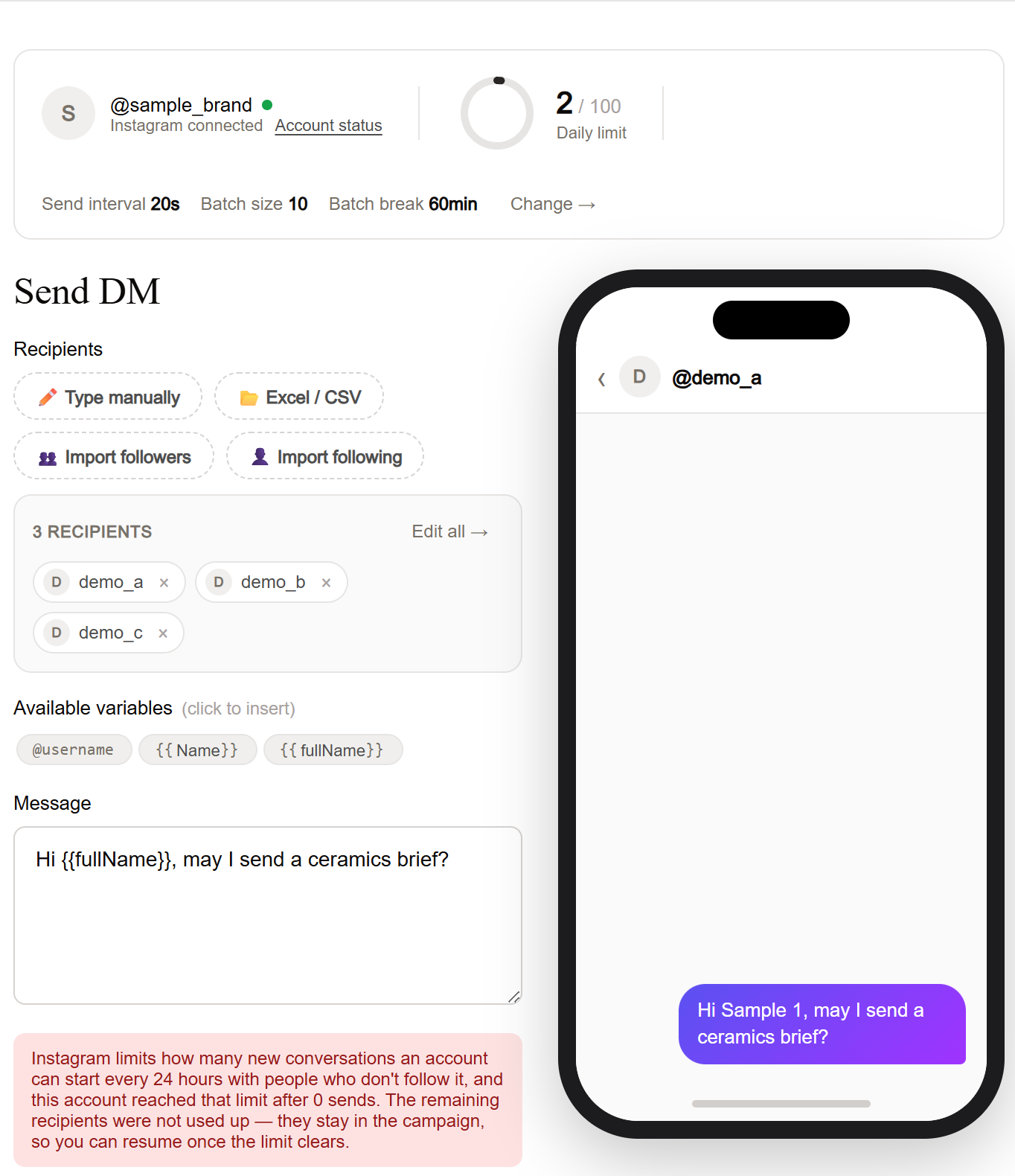
Check the Instagram session and sending connection
DM Studio uses the Instagram login in the same Chrome browser. If that session expired, sign back into Instagram and verify that the extension shows the intended sender. Google login for the DM Studio license does not repair an Instagram login.
If the sending tab disappeared and the queue paused, check the Instagram tab and use the displayed Reconnect action where available. After connection recovery, inspect the queue state and sender before Resume or Continue sending. Reconnecting or refreshing a page is not a promise that delivery resumes automatically.
If the problem is license verification or offline access, first restore the network and use Subscription to check the license. Sending remains blocked while eligibility cannot be verified. Keep the campaign and source file rather than creating repeated copies while troubleshooting.
Inspect a recipient failure separately
Open the failed attempt in History and read its classification. An invalid username or a recipient who cannot receive the DM is different from an account-level rate limit. Correct a genuine username error before preparing another attempt. Do not repeatedly retry an unchanged unavailable recipient.
The campaign can keep undelivered connection or session failures among remaining recipients, while recipient-side or repeated failures can be marked failed. After fixing the cause, inspect the remaining list instead of assuming every red row should be sent again.
Check account changes and missing variables
To switch an active sender intentionally, use Pause → switch in Instagram → verify the handle and message → Resume. Interval and batch waits still require pausing first. If you switched without pausing and the queue stopped, inspect the actual sender and campaign state. Already successful recipients in that campaign are skipped across accounts. See multiple-account operation.
If the preview contains a literal {{token}} or blank personalization, pause preparation and inspect the table through Edit all →. The preview shows only the first valid recipient. Check every row and match the template to exact headers.
Loading saved CSV campaigns can lose custom column values. Keep the original file and inspect it again. Reimporting does not automatically restore a campaign's sending state; compare prior successes and choose the optional past-success exclusion appropriately before starting any fresh list. Previously lost values are not recovered automatically. See the CSV guide.
Treat list collection as a separate preparation problem
If sourcing returns fewer people than requested, review what was actually added before preparing messages. Collection does not guarantee a complete follower or following list, and there may not be a dedicated explanation for a shortened result.
When you explicitly choose Stop during collection, the extension may offer to add the candidates collected so far. A collection error is different: do not assume partially collected rows were preserved or that retrying continues from where it failed. Inspect the table, then decide whether to retry later or use your own reviewed file.
When the reason remains unclear
DM Studio also stops after five consecutive unclassified failures. Avoid starting the same failing queue repeatedly. Keep the visible error wording, affected time, intended sender, and last attempt's result. Review the remaining campaign and preserve your original source file.
Contact contact@getdmstudio.com with the smallest useful description and a screenshot with recipient details masked. Do not send Instagram passwords, session cookies, tokens, or raw protocol payloads. For a license problem, include your linked Google account email or license identifier through the support channel, rather than posting it publicly.
Once the cause is addressed, follow the saved campaign continuation steps. For setup from the beginning, return to Getting started with DM Studio.