How to review Instagram DM history, export records, and prepare a follow-up
Use DM Studio sending history and JSON export to check results, compare replies in Instagram, and prepare a deliberate follow-up list.
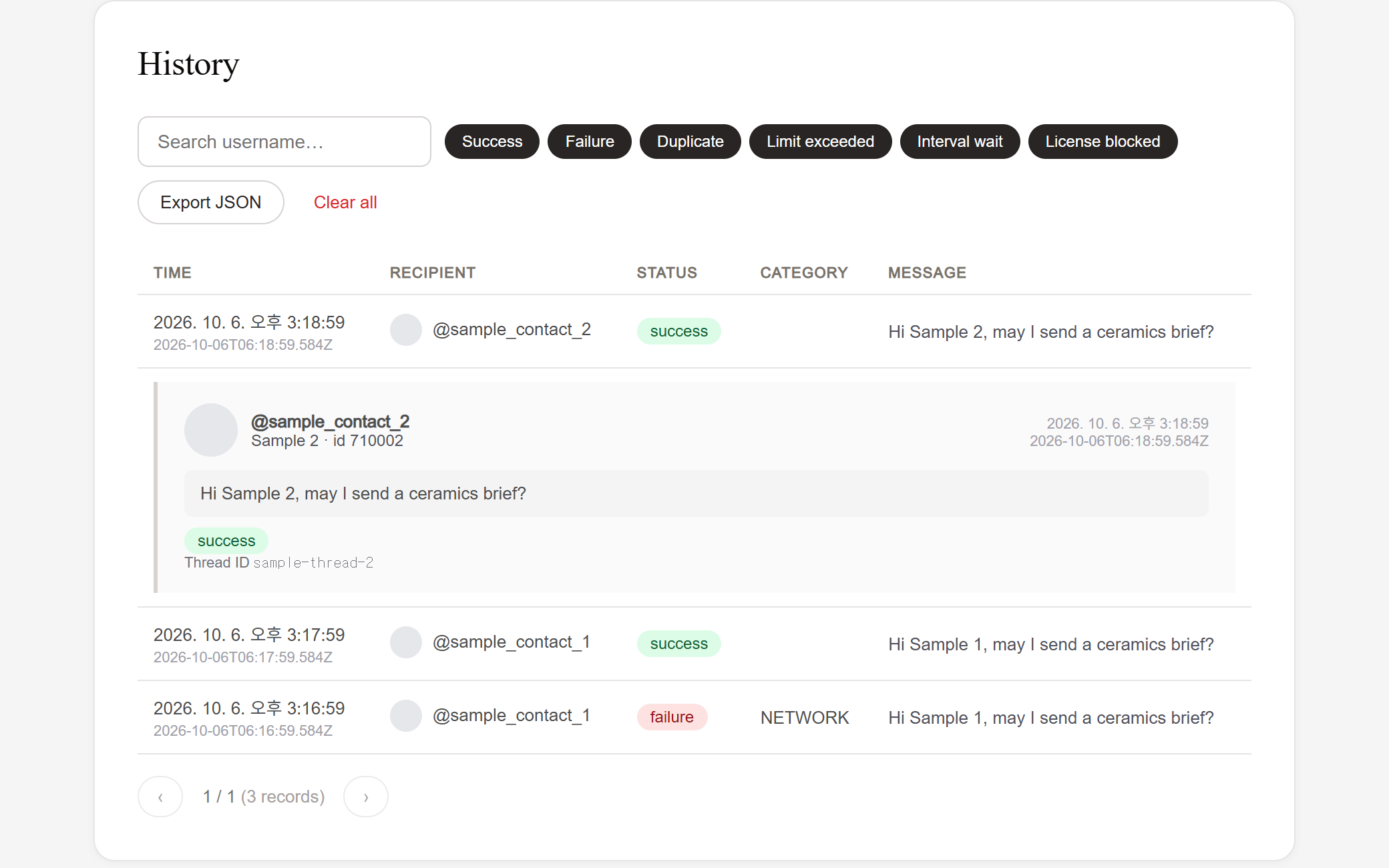
DM Studio's History records sending attempts and their results in your Chrome browser. Search for a username, filter results, and open a row to inspect its message and error details. Export JSON downloads the retained history so you can keep a record outside the extension.
A successful send is not a read receipt or a reply. To prepare a follow-up, compare successful sending records with the conversation in Instagram, then choose only the recipients for whom another message is appropriate. History does not automatically detect replies, create a follow-up sequence, or synchronize a contact database across your team.
What can DM history tell you?
| Question | Answer |
|---|---|
| Was a sending attempt recorded? | Yes. Check the timestamp, recipient, message, result, and any error classification. |
| Was the message read or answered? | History cannot tell you. Open the conversation in Instagram. |
| Can I keep a copy outside the extension? | Yes. Export JSON, then store the file with the source list and campaign notes. |
| Will the export update a team database or restore local history? | No. The export is a point-in-time file, and records remain local to this Chrome browser. |
For a follow-up list, start with successful records, remove people who declined, respond directly to active conversations, and review the remaining conversations before deciding whether another message adds value.
Find the attempt you need
- Open History after your campaign.
- Use the username search to find a recipient, or the status filters to inspect successes, failures, or blocked attempts.
- Open the row for the time you want to check. Review the recipient, full message, result, error classification when present, and conversation information.
- If an attempt is unclear, check the corresponding conversation in Instagram before deciding whether to contact that person again.
The table shows 50 records per page. A recipient can have multiple attempts, so read the timestamp and message rather than treating one row as the person's entire contact history. The record is about an attempt, not a permanent label such as “interested” or “not interested.”

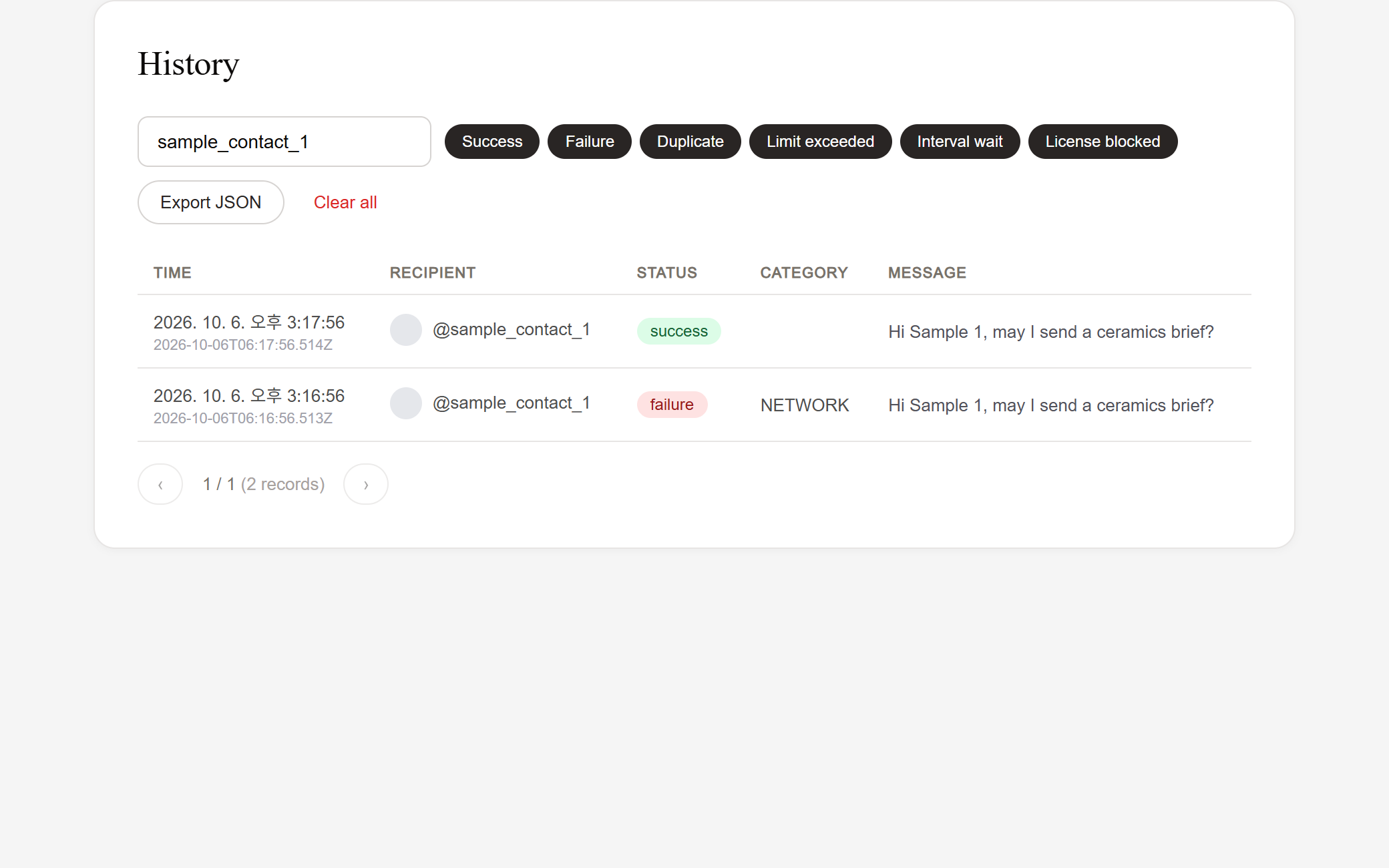
Example: A failed connection attempt appears before a later success for the same recipient. The earlier failure does not mean the person still needs the original pitch. Check the later successful message and Instagram conversation before preparing another contact.
Interpret the result before taking action
| Result or context | What to check next |
|---|---|
| Success | Confirm the message in Instagram; review replies before considering a follow-up |
| Recipient unavailable or an invalid account | Check the username and whether the recipient accepts the contact; avoid repeated unchanged attempts |
| Session or connection failure | Fix the sending session, then review later attempts and campaign remaining recipients before retrying |
| Quota or interval block | Check the current quota or wait state; do not treat it as proof a message was delivered |
| Campaign summary says complete after cancellation | Compare individual success records, remaining recipients, and Instagram; the summary alone is not delivery evidence |
History may include older status types. A duplicate-related record from earlier use is not evidence that fresh campaigns always block repeat contact today. The current new-campaign exclusion option is a separate choice.
For a stopping reason, use sending troubleshooting. For where a first message appears and what delivery does not prove, read Instagram message requests explained.

Export a durable copy
Choose Export JSON in History and keep the downloaded .json file with your campaign source file and work notes. The export includes the retained history, not just the visible page or current filtered results. Search and status filters help you inspect the screen; they do not narrow this export.
JSON is a structured data file, not an Excel workbook. You can inspect it in a text editor or use a spreadsheet's JSON import feature to arrange the fields for review. Keep an untouched copy before editing or converting it. Raw sending-protocol debug payloads are excluded from the export, but the file still contains recipient and message records, so share it only with people who need them.
Local history holds up to 5,000 records, removing the oldest first. Export regularly if you need a longer record. Clear all removes history after confirmation. Clearing history can also remove the evidence used by the browser's past-success exclusion option; exporting does not make that file an automatic replacement for the extension's local history.
Tip: Record the export date and intended brand in an external work note. When reviewing two brands, use those notes and the underlying sending records rather than assuming everyone in a file was contacted by the currently selected account.
Build a follow-up list deliberately
Suppose you sent a paid collaboration proposal to eight reviewed makers. Two declined, one replied with a question, and the rest have no visible reply. A useful follow-up plan has separate decisions:
- Leave the two people who declined out of the follow-up list.
- Answer the question in Instagram with the details the person asked for.
- Review the other conversations and decide whether a further message adds useful information, using each person's contact preference and context.
Prepare a new CSV containing only the people you have chosen to contact again. Keep the exact username header and add verified fields for the new message. For example, a follow-up may clarify the paid scope you can actually offer rather than repeating “Did you see my message?” for everyone.
Use the personalized CSV guide to inspect variables and every row. The first-row preview does not confirm the whole follow-up list.
Choose the right exclusion behavior
Exclude previously sent accounts is off by default for fresh campaigns. Turning it on excludes recipients with successful sends in this browser's retained history, across all its Instagram accounts. This is useful for a new first-contact list, but it can remove the very people you deliberately selected for a follow-up.
For an intentional follow-up, review the fresh list and keep exclusion off only when you mean to contact those people again. Before starting, check the sender, rendered message, recipient count, and excluded count. This choice does not reset a saved campaign's own sent recipients: continuing an old campaign skips people it already sent to, even if another account sends the remaining messages.
Free permits ten sends per day across accounts on the same license. PRO keeps the product cap of 100 successful sends per Instagram account per day and the same minimum pacing. Follow-ups use those limits too; they are not a separate unlimited allowance.
Keep the boundaries clear
History, campaigns, and recipient lists are local to this Chrome browser. Google license login does not cloud-sync these records. Messages are sent directly to Instagram. The license service receives the license UUID and usage counters, plus your email when using Google login; permitted anonymous usage events go to analytics without message text or recipient lists. See the privacy policy.
Export the current history, compare successful records with Instagram conversations, and create a follow-up file containing only the recipients you deliberately selected.
If you need to continue unsent recipients rather than contact successful recipients again, use the campaign continuation guide. For the overall workflow, return to Getting started with DM Studio.